
Best SD Card Readers for MacBook Air & Pro (2026)
We tested USB-C and Thunderbolt readers on M3, M4, and M4 Max MacBooks. Here's which ones actually deliver UHS-II speeds without blocking your charging port.
M4 Max MacBook Pro Users: Built-In SD Slot Issues Reported
Some M4 Max owners report the built-in SD slot is intermittently unreliable—cards won't recognize, then suddenly work. If you're experiencing this, an external USB-C reader is more dependable. See Apple Communities thread.
SD Card Checker contains affiliate links. When you purchase through our links, we earn a small commission at no extra cost to you.
Quick Picks by Use Case
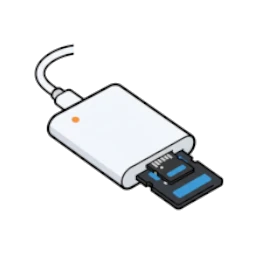
Apple USB-C to SD Card Reader
Apple's official reader. UHS-II certified, won't block adjacent ports, guaranteed to work with every MacBook forever. Best for users who want zero headaches.
SanDisk Extreme PRO USB-C Reader
UHS-II speeds at a great price. Flexible cable design doesn't block ports. Real-world transfers: 250–280 MB/s. Trusted brand, proven reliability.
ProGrade Thunderbolt Workflow Reader
For 4K RAW video workflows. Dual-slot simultaneous transfer. Real-world speeds: 400–800 MB/s on SD cards. Worth it if you offload 256GB cards daily.
Real-World Speed Comparison
Tested on MacBook Air M3 with SanDisk Extreme PRO UHS-II cards. Theoretical vs. actual transfer speeds.
| Reader | Interface | Spec Speed | Real-World | Best For | Price |
|---|---|---|---|---|---|
| Apple USB-C Reader | USB-C 3.0 | 312 MB/s | 250–280 MB/s | Anyone (zero headaches) | $39 |
| SanDisk Extreme PRO | USB-C 3.1 | 312 MB/s | 250–280 MB/s | Photo/video backup | $31 |
| Unitek Y-9324BGY | USB-C 3.0 | 312 MB/s | 240–270 MB/s | Multi-card support | $25 |
| ProGrade Thunderbolt | Thunderbolt 3/4 | 312 MB/s (SD)* | 400–800 MB/s | 4K RAW ingest | $150 |
*ProGrade: SD cards max at UHS-II (312 MB/s theoretical). Thunderbolt speeds reach 1,250+ MB/s only with CFexpress cards. For SD-only workflows, USB-C readers hit the same speed ceiling as Thunderbolt.
Top 5 Readers Tested
1. Apple USB-C to SD Card Reader
Apple's official USB-C reader is the safe choice. Compact, won't block adjacent ports, works perfectly with every MacBook. Real-world speeds of 250–280 MB/s are solid for photography workflows. No drivers needed. Guaranteed to work for years.
Pros:
- ✓ Official Apple product—guaranteed compatibility
- ✓ Doesn't block adjacent ports (compact design)
- ✓ UHS-II support at budget price point
- ✓ Built to last
Cons:
- ✗ SD cards only (no microSD support)
- ✗ Fixed cable not replaceable
2. SanDisk Extreme PRO USB-C Reader
Best value for the money. SanDisk's Extreme PRO delivers the same 312 MB/s theoretical speeds as Apple's reader at $8 less. Flexible cable design prevents port blockage. Proven brand trusted by professionals worldwide. Real-world speeds: 250–280 MB/s.
Pros:
- ✓ Same speed as Apple reader, $8 cheaper
- ✓ Flexible cable won't block ports
- ✓ MicroSD support included
- ✓ LED activity indicator
- ✓ 5-year warranty
Cons:
- ✗ Cable attachment can wear over years
3. Unitek Y-9324BGY USB-C Card Reader
Reviewed.com's top pick. Reads multiple card types simultaneously: SD, microSD, and CompactFlash. Perfect if you shoot with DSLRs and drones. Same 312 MB/s speeds as premium readers but at $25. Great for backing up multiple devices at once.
Pros:
- ✓ Reads 3 card types simultaneously
- ✓ Cheapest UHS-II option
- ✓ CompactFlash support (rare)
- ✓ Aluminum construction
Cons:
- ✗ Cable is permanently attached
- ✗ Wider form factor may block ports
4. Transcend RDF9 UHS-II Card Reader
Reviewed.com's second pick. Compact box reader with both USB-A and USB-C cables included. Perfect for travel photographers who work with both new MacBooks and older laptops. Real-world speeds: 260 MB/s. Reliable Transcend brand backed by strong warranty.
Pros:
- ✓ Dual USB-A + USB-C cables (backward compatible)
- ✓ Excellent for travel photographers
- ✓ Reliable Transcend brand
- ✓ LED activity indicator
Cons:
- ✗ Bulkier than dongle-style readers
- ✗ Not ideal if you need direct port connection
5. ProGrade Digital Thunderbolt Workflow Reader
Professional only. Dual-slot reader with Thunderbolt connectivity for insanely fast offloading. Real-world SD speeds: 400–800 MB/s. A 256GB card transfers in 5–10 minutes vs. 30+ on USB-C. Only buy this if you're offloading 4K RAW or high-bitrate cinema footage daily.
Pros:
- ✓ Fastest offloading speeds available (dual-slot)
- ✓ CFexpress + SD support
- ✓ Magnetic stacking for desk organization
- ✓ Built for professional workflows
Cons:
- ✗ Overkill for casual photographers ($150)
- ✗ SD card speed ceiling still 312 MB/s
- ✗ Thunderbolt 3/4 port required
Troubleshooting: Reader Issues & Fixes
Reader not recognized by Finder
1. Restart the reader: Unplug for 10 seconds, reconnect.
2. Try a different USB-C port: Some ports have firmware bugs on M4 Macs.
3. Update macOS: Mac menu → System Settings → General → Software Update. Ensure you're on at least Sequoia 15.3+.
4. Test with a known-good card: Borrow a card you know works. Your card might be corrupted.
5. Reset SMC: Shut down. Hold Shift+Control+Option+Power for 10 seconds until light blinks. Release. Wait 30 seconds and restart.
Transfers are slow (under 50 MB/s)
1. Confirm your card is UHS-II: Look for "UHS-II" text on the label. UHS-I cards max at 104 MB/s.
2. Check your reader specs: Budget readers (under $20) are often UHS-I only. You need UHS-II support for 250+ MB/s.
3. Disable Spotlight indexing: System Settings → Siri & Spotlight → Uncheck the card name. Spotlight slows transfers.
4. Close bandwidth hogs: Chrome, Zoom, and iCloud sync compete for bandwidth. Close them during large transfers.
5. Use Activity Monitor: Open Activity Monitor (Applications → Utilities) and check Disk I/O. If it shows <100 MB/s, the bottleneck is your MacBook's storage, not the reader.
Reader blocks my charging port on MacBook Air
Why this happens: MacBook Air has 2 USB-C ports close together. Bulky readers (like wide dongles) block the adjacent port.
Solutions:
- Buy a flexible-cable reader (Apple, SanDisk, Transcend don't block)
- Use a USB hub with rear ports if you must charge + read simultaneously
- Transfer files when plugged into power, not on battery
Card works sometimes, then disappears (M4 Max built-in slot)
Known issue: Some M4 Max MacBook Pro units have flaky built-in SD slots. Apple is investigating.
Temporary fixes:
- Fully eject the card and reinsert
- Update to latest macOS (15.3+)
- Contact Apple Support for potential replacement
Workaround: Use an external USB-C reader. It's more reliable than the built-in slot right now.
How do I safely eject a card?
Never just yank the card out. Follow these steps:
- In Finder, locate your SD card in the sidebar
- Click the eject icon () next to its name
- Wait for the notification: "
can now be safely removed" - Now pull the card out slowly
Never eject while a transfer is in progress. Wait for the transfer to complete (Finder window shows 0 items left).
Frequently Asked Questions
Is the built-in MacBook Pro SD slot fast enough?
Yes, for most users. The built-in slot supports UHS-II (312 MB/s theoretical). Real-world speeds are 250–280 MB/s, which is excellent for photo backup and 4K video offloading.
BUT: Some M4 Max owners report reliability issues—cards randomly stop being recognized. If you experience this, an external USB-C reader is more dependable. See the warning box at the top of this page.
What's the real speed difference between USB-C and Thunderbolt readers?
USB-C UHS-II readers: Real-world 250–280 MB/s. Theoretical max 312 MB/s. Good enough for 99% of users.
Thunderbolt readers: Real-world 400–800 MB/s. BUT this speed only applies to CFexpress cards, not SD. For SD cards alone, you hit the same 312 MB/s ceiling as USB-C.
Buy Thunderbolt only if: You use CFexpress cards on Canon EOS R5, Nikon Z9, or professional cinema cameras. Otherwise, USB-C is plenty fast.
Will a USB hub slow down my reader?
Yes. Hubs share bandwidth across all connected devices. Always plug your reader directly into the MacBook's USB-C port for full speed.
Exception: Thunderbolt docks (not USB hubs) can preserve full speed if they have dedicated controller chips. But even then, direct connection is faster.
Should I buy MicroSD slot or full SD slot?
Full SD slot: If you shoot with DSLRs, mirrorless cameras, or professional camcorders. This is your main use case.
MicroSD support: If you also shoot with drones (DJI), action cameras (GoPro), or older phones. Combo readers like SanDisk Extreme PRO support both.
Recommendation: Get a reader with both SD and microSD slots. Costs the same, covers more devices.
Is Apple's $39 reader worth it vs. cheaper alternatives?
Yes, if: You want guaranteed compatibility, zero driver hassles, and a product that won't fail after 6 months. Apple backs it forever.
No, if: You need microSD support (Apple's reader is SD only) or want to save $8. SanDisk Extreme PRO at $31 is just as fast with microSD included.
Budget pick: Unitek Y-9324BGY at $25 gives you multiple slots at UHS-II speeds. Reviewed.com ranked it #1.
Do these readers work with iPad Pro?
Yes. All USB-C readers work with USB-C iPad Pro (3rd gen and newer). iPad Air (5th gen and newer) also works.
Important: iPads don't have a traditional file system. You'll need the Files app to access card contents, or use specialized apps like Lightroom Mobile or Capture One.
Featured SD Card Readers on Amazon
This website contains affiliate links. We may earn a small commission when you purchase through our links at no extra cost to you.

Anker SD Card Reader, 2-in-1 USB C Memory Card Reader for Digital Camera SD Card Viewer with Dual Slot for SDXC, SDHC, SD, MMC, RS-MMC, Micro SDXC,MicroSD, Micro SDHC Card, and UHS-I Cards

USB C SD Card Reader, Oyuiasle USB C to SD Card for iPhone 15 16/iPad/Mac/Laptop, USB-C/Type C Memory Card Adapter for iMac, iPad Pro Air Mini, MacBook Pro Air,Galaxy,MicroSD/SD
